
In order to run an ArcExplorer report it is first necessary to design and create a report in EMu. This requires that you:
- Build or choose a map template.
Map templates can be created in ArcExplorer using the demo files provided as a starting point, or you can simply use any of the template maps provided with ArcExplorer. The end result is an AXL file.
- Create an ArcExplorer report in EMu and associate the AXL file with it.
Multiple reports can be designed, each using different map templates (e.g. plotting EMu records by ecological zones; or on a simple map of world boundaries, etc.).
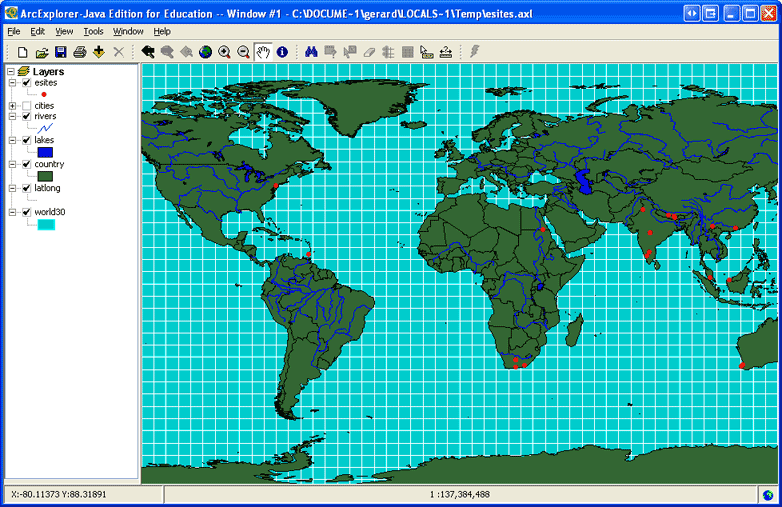
When an ArcExplorer report is run in EMu, ArcExplorer opens with a map displaying the EMu data and any GIS layers that were specified in the template. Within ArcExplorer it is then possible to add GIS layers, query points and generally use the functionality of ArcExplorer to view the EMu records.
Using an ArcExplorer AXL file
ArcExplorer is loaded with a range of base templates. If the application was installed in the default location, these are stored in:
ESRI/AEJEE/Data/
A good starting point is to load the world_hd.axl template.
Note: If you use one of the demo AXL files supplied with ArcExplorer, it is necessary to open and save it first in ArcExplorer prior to adding it to a report for the first time. These demo AXL files are not portable, that is they must always be located in the one place on a user's PC. EMu requires them to be portable. A demo AXL file is made portable when it is opened in ArcExplorer and saved, either under its own name or a new name. For details of building your own template from scratch, see Making a custom AXL file below.
To make an ArcExplorer report using a demo AXL file:
- Open the ArcExplorer (AEJEE) application.
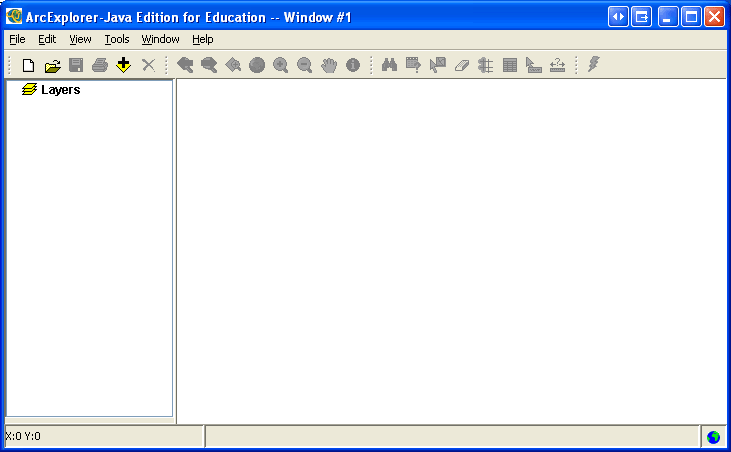
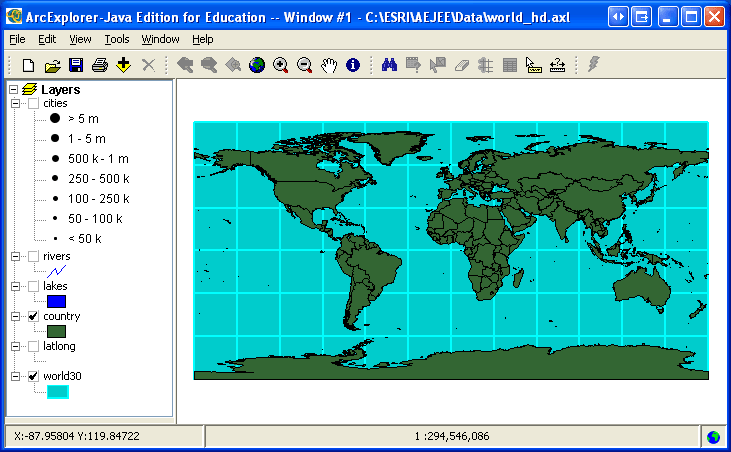
- Open an AJEE template by selecting File>Open, navigate to
ESRI/AJEE/Dataand select the required AXL file.In this example,
world_hd.axlwas selected.The template displays in ArcExplorer:
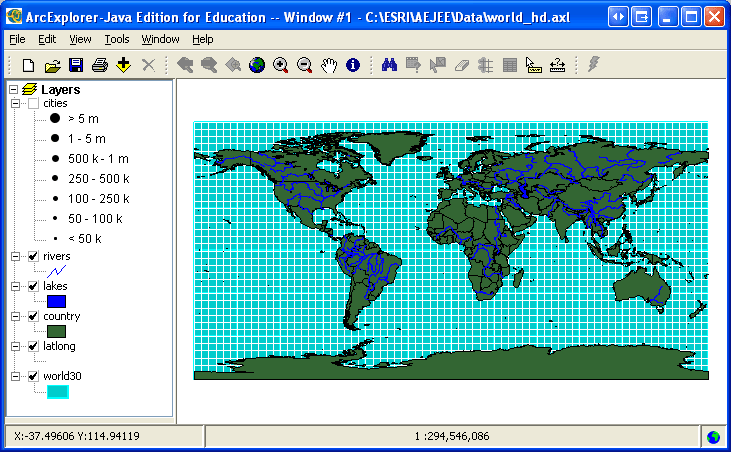
- Modify the template as required, for example by adding layers:
- Select File>Save As to save the template without over-writing the original template. Be sure to use a descriptive name.
- In EMu, create a new report in the appropriate module.
In this example the report is created in the Sites module.
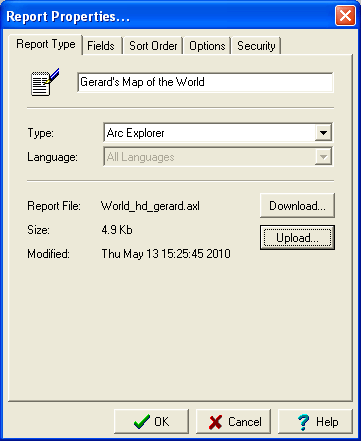
- Give the report a descriptive name and select Arc Explorer from the Type drop list on the Report Type tab:
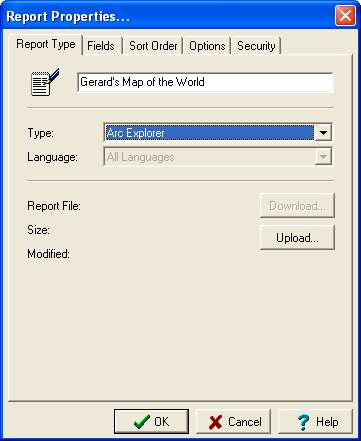
- Click Upload to upload your map template:
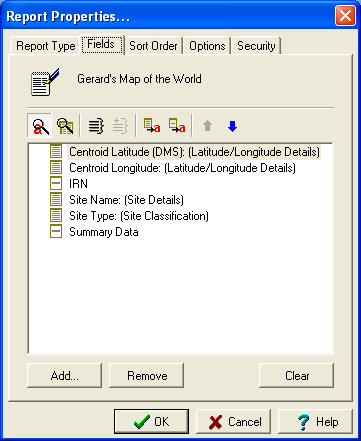
- Select the Fields tab and add fields to the report.
Note: You must add one pair of Latitude / Longitude fields.
Other fields that would typically be added include:
- IRN
- SummaryData
- Family / Genus / Scientific Name
- Save the report and run it:
Making a custom AXL file
ArcExplorer is provided with a wide range of shapefiles (layers) which you can use to build a template from the ground up.
- Start a new session in ArcExplorer (File>New).
- Begin adding shapefiles by clicking Add Data
 in the Tool bar and navigating to
 ESRI/AJEE/Data. - From there, select one of the folders containing shapefile:
- Select a shapefile.
- Click OK to add it to your new template.
Add as many shapefiles as required.
- Save the template with a descriptive name.
This generates an AXL file that can be used as the template for an EMu ArcExplorer report.
See Using an ArcExplorer AXL file above for details of building the EMu report.